Showing posts with label osx. Show all posts

Monday, July 30, 2012

Mountain Lion Brings Encrypted Backups to Network Drives

Starting with OSX 10.8 (Mountain Lion), the "encrypt backup" checkbox in the Time Machine preferences is no longer disabled when you're looking at a network volume like a share on a Time Capsule. It's about time.


Before this, only directly attached volumes (like USB, firewire, eSATA) had this option. This bugged me endlessly because all the beauty and ease of Time Machine was dangled in your face then taken away.

Anyone on 10.7 or lower who really wants to use Time Machine but wants it backed up to network shares and encrypted will have 2 choices.  First choice is to follow advice mentioned in the previous post about putting the unencrypted Time Machine backups into an encrypted sparseimage that resides on the network. The down side of this is that you have to mount the disk image before Time Machine will be able to back up to it. Even with Keychain memorizing the password to the encrypted disk, it still takes some manual intervention or custom Applescript automation to get it mounted.

Second choice is to find a NAS that supports iSCSI (just about all of them except the DroboFS) and configure the backup volume as an iSCSI target. This works to because to the operating system, an iSCSI volume looks like direct attached storage, not a network share. So the "encrypt backup" checkbox in Time Machine options is not grayed out, it is enabled just as if you had plugged in a Firewire external drive. The down side of this is that for 10.7, the cheapest iSCSI initiator is about $80, and the other one is $200. For 10.6, there is a free iSCSI initiator. Aside from having to buy software that costs more than OSX itself, iSCSI shares get forcibly ejected when your computer wakes up from sleep or your network connection goes away. This is the same as yanking the cable of an external drive out of your machine without properly "ejecting" it first. It can corrupt data.


So, this fix in 10.8 is welcome, and is the only reason I upgraded from Lion (which I was almost immediately sorry for last year). Now with Mountain Lion I can set and forget Time Machine to make encrypted backups to network attached storage.

As long as you are making backups, you might also think about keeping a copy off-site in case your house burns down or your stuff gets stolen. Crashplan has a nice way of letting you make backups onto your friends' computers. But suppose you have no friends and need to buy storage? Look at these annual prices.

5G 10G 20G 25G 50G 100G 200G 500G 1TB Unlimited
Google Drive free $29.88 $59.88 $119.88 $599.88
Amazon Cloud free $20 $50 $100 $200 $500 $1000
Apple iCloud free $20 $40 $100
Dropbox free $99 $199 $499 $795
Crashplan $24.99 $49.99

Biggest rip-off is from Apple. The best deal for a place to put your backups is Crashplan, who allows unlimited data storage. Its competitors like Carbonite also have unlimited storage for a slightly higher price, but I didn't bother to list them here because their programs have such strange restrictions like not backing up video files or files larger than 4GB unless you specifically ask for them, and not allowing data from external drives unless you pay more. Crashplan, on the other hand backs up everything you have unless you say not to, including all the external disks you can plug into your computer. Plus, Crashplan gives you the option to backup to local storage (your USB drive) and to your friends' computers, not just to the online service they sell. It's clearly the best deal. When digital stuff is so important in our lives, how is it not worth $4 a month to keep it safe?

The unavoidable downside of online backup service is that your hard drive is probably hundreds of gigs, if not terabytes, and so will take a very long time (days or weeks) to upload your first complete backup. Then, if you have an emergency and need your data back, downloading that much data can still take days. (You are also allowed to cherry-pick files to recover, you're not required to download everything.) To alleviate these delays, Crashplan offers a service for $125 in each direction where they ship you an external drive and you send it back when you're done. 

I'm not subscribing right now because I prefer backing up to my own external drive at an off-site place with good internet access, but if that went away, I'd sign. They even have a "family" plan for about twice as much that allows everyone in your house to pile on to make sure their funny-faces from Photo Booth will be safe forever. 

Sunday, July 08, 2012

DroboFS, so slow. NFS Slower.

Two years ago I got a DroboFS because I wanted extra storage accessible to the whole family, a place to keep Time Machine backups, easy hotswap maintenance, and no hassle with plugging in any directly attached storage devices. The Drobo FS can do all this, but it is so slow, I hardly ever use it. Whenever I do try to use it, it is such a slug, I almost always get sidetracked starting to research something to replace it so I can get rid of it. Like this guy.

Using the DroboFS over 802.11n (2.4Ghz, n-only) wireless, it reads and writes at about 5MB/s (megabytes per second). This is under OSX 10.7.4 Lion, the most recent Drobo firmware 1.2.4, and all Western Digital 2TB EARS "green" drives. It's about the same speed when the base station is set to n plus b/g compatibility. In my house, the n-only 5Ghz was worse.

I have read that the best DroboFS will ever do is about 30MB/s (megabytes per second, or 240 megabits per sec), which is 6 times faster than what I am getting out of it over wifi. Sometimes I would be willing to plug in to ethernet to get things moving faster, but that's not very convenient on a Macbook Air with no ethernet.

The Apple Airport Extreme Base Station that I have is from 2008 and can do "802.11n" according to the draft specification that there was at the time. That should mean wireless speeds of up to 160mbps (20 megabytes per second). However, I have never seen it go faster than "g," which is a maximum of 54megabits/sec (6.75MegaBytes/sec). I know this because iStat Menus gives me nice little speedometers in the menubar that I am always checking. If my base station is too old to get real world "n" speed, then I am within 1MB/s of what the hardware can push and it's not Drobo's fault that it's  practically unusable over wifi. But, assuming that I can get "n" wifi speed, there are 15 more megabytes/second (3 times faster) that I should be able to read from/write to it.

While trying to find out whether there was any way to make it faster, I read that some people found some performance gain using NFS, as opposed to the built-in AFP protocol. In order to try it, you have to enable DroboApps, and install the unfsd. I did that and found NFS is even worse than AFP, losing about 1MB/s in both read and write speed.

In order to get NFS to even work at all, I had to read a lot of blog posts. The default exports file that comes with the unfsd app offers to share every share created in the Drobo Dashboard:

/mnt/DroboFS/Shares 10.0.0.0/8(rw,no_root_squash)

and uses the "no_root_squash" option, which means that files created over NFS get done on the Drobo system as the root user. That is usually not good, and usually the opposite of how any software would generally come by default.

In order to connect to this NFS export you can either get to the Finder and choose "Go, Connect to Server" from the top menu (Command + K) and type:

nfs://[IP address of DroboFS box]/mnt/DroboFS/Shares/

(Notice that the path on the end of that connection string is the entire full path to the share from the perspective of the Drobo box. It won't work if you put the share name alone after the IP address.)

Or you can manually mount the export from a shell prompt. Before mounting this way, you have to make an empty directory as the spot that you will mount it on top of. So, first:

mkdir ~/myDroboshare


sudo mount -w -t nfs 10.0.1.2:/mnt/DroboFS/Shares/Public /Users/[your username on your Mac]/myDroboshare

all the above has to be typed on 1 line.

If you do one of the above, then you'll find the share accessible to OSX and can see it in Finder windows, and from a shell prompt you will be able to write in there. But from the GUI, everything will appear as a read-only filesystem. GUI apps will think they cannot write in there and give you error messages.


In order to fix this problem, you need to get back to the Drobo box and edit the services.sh file that is in the same directory as the exports file (/mnt/DroboFS/Shares/DroboApps/unfsd/) and add in a "-s" for "single user mode" to this line:

${prog_dir}/unfsd -s -e ${exportsfile} -i ${pidfile} >> ${logfile} 2>&1

After editting the file, you want to restart the nfs service on the Drobo box. The best way to do that is by running that script from a shell prompt on the DroboFS box:

/mnt/DroboFS/Shares/DroboApps/unfsd/service.sh restart

In order to do it that way, you will have to have installed the Dropbear SSH app, and ssh into the box as root. Otherwise, the only way to restart any of these DroboApps is to restart the whole DroboFS box, by turning it off and on, or using the "restart" button in Drobo Dashboard under the "Tools" menu.


Sunday, March 02, 2008

Reasonable Backups of Filevault

It doesn't take much web searching to come to the conclusion that the new Time Machine in MacOS 10.5 does not work well with Filevault.

The problem is that to Time Machine, a home directory protected with Filevault is just one big "sparse image" encrypted file. Although it will happily backup this file, doing that defeats one of the purposes of TM, which is to give you snapshots of every individual file from different times, so that you can go back through them and preview them easily before restoring.

If TM is backing up this giant disk image each time, then it is spending all your disk space on your backup drive on the whole disk image for every snapshot. This is a total waste of space. Without Filevault, the behavior would be to take a snapshot only of the changed files, so that your backup drive was only using space to store 1 copy of your files, plus the changes for each snapshot. Another problem with the interaction between FV and TM out of the box is that it's not very convenient in the "Cover Flow" interface to browse through the encrypted images, nor to have to provide a passphrase for each and mount each in order to look at the files inside.

Therefore, I decided to use "rsync" (from Terminal) to backup my home directory to an external drive while I am logged in. In order to keep my files secure on the backup drive, I decided to encrypt that whole device with Truecrypt, which just recently added support for MacOSX.

First I downloaded the Truecrypt .dmg file, mounted that by doubleclicking it, then ran the Truecrypt installer inside there. Once Truecrypt was installed on the Mac, I ran it and told it to encrypt the whole external USB backup drive.

After that was finished, I mounted the new volume according to the "Beginner Tutorial" in the TC documentation. At this time, TC could only create the volume as a FAT filesystem. Because I've been burned before by FAT's maximum filesize of 4G (tarring some stuff directly to the backup drive and having my tarball silently truncated at 4g), I wanted a real filesystem for my backups.

To change the filesystem of the mounted Truecrypt volume, I opened Disk Utilities from the Applications, Utilities menu in the Finder and, while Truecrypt volume is still mounted (so you see it without the encryption), told it to partition the new volume 200G HFS+ and 50G FAT. I left a FAT partition on it so that I could still use the drive on other non-Mac computers.

After the TC volume was re-partitioned and reformated, I was ready to run rsync to copy my home directory in there:
rsync --archive --progress --verbose \
--exclude '.Spotlight-V100' --exclude '.fseventsd' \
--exclude 'Desktop ' --exclude 'Library/*' \
--exclude 'Downloads/*' --exclude 'Music/*'
--exclude 'Public/*' --exclude 'Sites/*'
~me /Volumes/MacBackup/backup
Where my username on the Mac is "me" and the HFS partition inside the Truecrypt volume is "MacBackup" and the directory inside there where I want all my backup stuff is "backup." The result of the command is that everything in my home directory, including hidden files that begin with a '.' like .bashrc, will be copied to the backup directory -- except for a few subdirs of the home that I don't care about and have excluded.

While figuring out which rsync command will work for you, add the "--dry-run " option in until you get it right. I will be saving that command in a shell script that I will periodically execute after connecting the USB drive and running Truecrypt to unlock and mount it.

The reason that I am involving Truecrypt at all is just so that I could use the backup drive on other non-Mac machines, since it is cross platform Windows/Linux/Mac encryption. If I didn't care about the cross platform stuff, I would just have used Apple's Disk Utilities to create an encrypted disk image on the USB drive, and stored backups in there. I sort of defeated some of that purpose by using an Apple-only HFS partition, but maybe in the future there will be a better cross platform filesystem to select from the Disk Utility menu that will also support files larger than 4G.

Thursday, September 07, 2006

Stop gnome-terminal screen clear

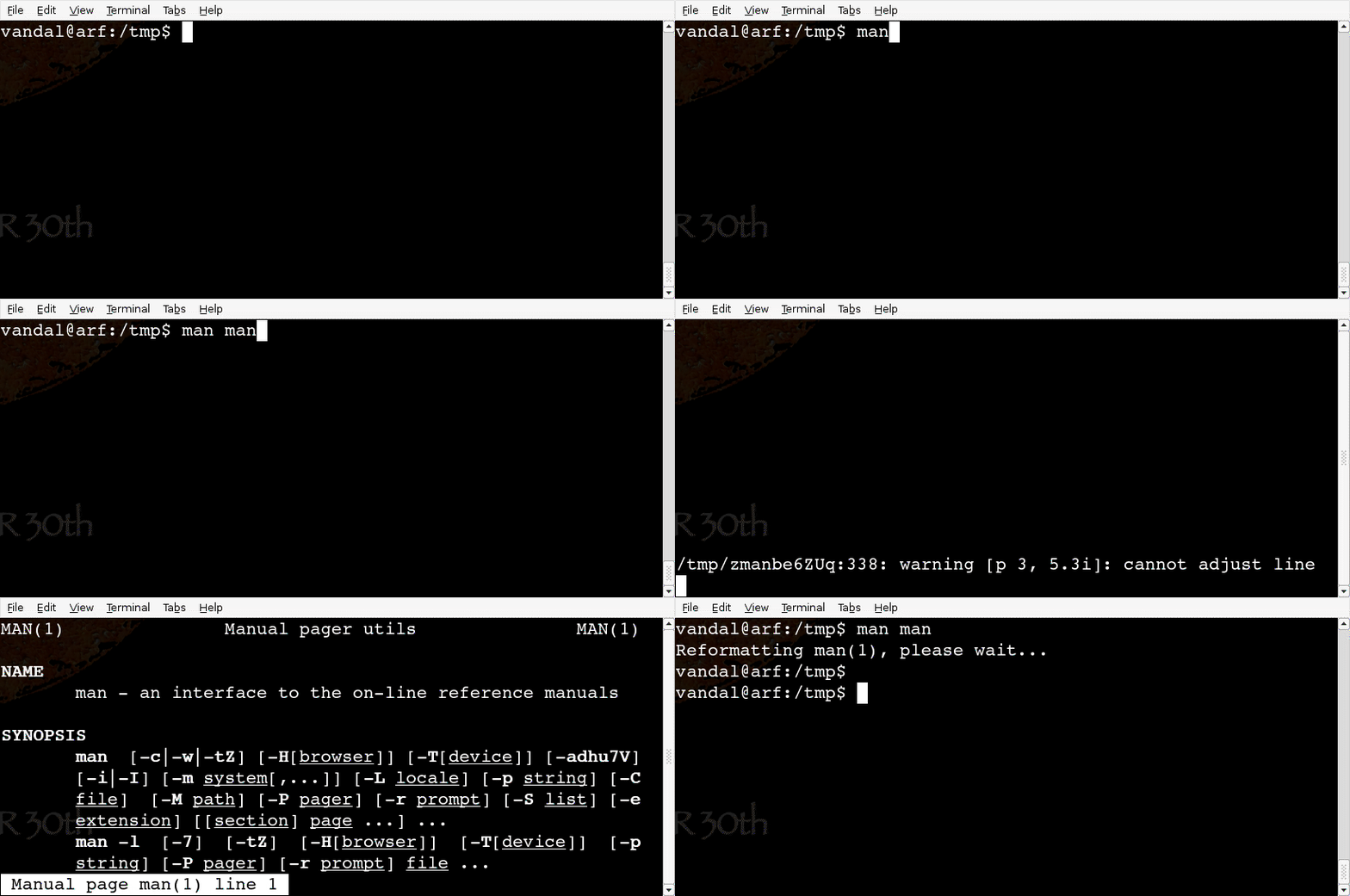
Gnome-terminal (and Mac OSX Terminal.app) clears your screen when you quit a pager or editor and I don't like it. You won't like it either if you need to refer to the thing you were just looking at after you exit back to shell. This happens with man, less, more, pico, vi and others.

Here's an example of gnome-terminal automatically clearing the screen when exiting a pager. This is what needs fixing:


Here's what it does after we fix it. No more automatic clearing:


I used to fix this problem easily in the MUD by setting an environment variable: setenv NO_CLEAR 1

But Ubuntu Dapper is no LPMUD. I searched Google for the fix. Other people had the same complaint. The best source of synthesized info I found was here.

That writer, Akkana, understood the problem and offers some solutions for everything except gnome-terminal:
"...there's no way to tell gnome-terminal to disable the alt screen behavior."
I eventually found my own solution to fix gnome-terminal that I'll share at the end of this post, but first I want to review Akkana's, since her site doesn't accept comments.

First, she correctly identifies that gnome-terminal is the source of my problem. I confirmed that by dropping out of X to a real console (CNTRL+ALT+F2), logging into my shell, and checking my TERM environmental variable:
echo $TERM
On a console, that returns "linux," and quitting any pager on a console leaves the paged info on my screen the way I want it. While in X (CNTRL+ALT+F7 to get back to X), using gnome-terminal, the $TERM variable is "xterm."

This means that I can't solve this problem under X in a way that will break my console. How limiting.

Akkana offered 3 ideas and I tried them all. The first was to create a file in my home directory called .Xdefaults (symlinked to .Xresources, just in case) that contains these lines:
XTerm*titeInhibit: true
xterm*titeInhibit: true
gnometerminal*titeInhibit: true
gnome-terminal*titeInhibit: true
and then launch new terminals both in the real xterm program and in gnome-terminal. Through trial and error, I determined that only the 2nd line above had any effect, and it only stopped screen clearing in the xterm program. That problem persisted in gnome-terminal.

If I would just use xterm, my work would be done. But I do not like xterm.

Akkana's next suggestion is to create a ~/terminfo/xtermnoalt.terminfo file and export a TERM for it into the bash environment. She provides the file, doctored xterm-color terminfo data, but with the ti/te and rmcup screen clearing bits removed. Without those, gnome-terminal is supposed to be tricked into never trying to use those features.

It sort of works, but causes an extra prompt warning that my terminal is broken:
~$ man man
Reformatting man(1), please wait...
WARNING: terminal is not fully functional
- (press RETURN)
I can hit RETURN and get the pager normally after that, and when I quit, my screen does not get cleared, but that broken warning is more irritating than the original problem.

The 'man' utility ultimately uses 'less' to do its paging, and 'less' is actually the program emitting that warning. Even though I always use 'more' instead of 'less,' and 'more' still works fine, I look at man files a lot, and I am not satisfied with these results.

Technically, I could go a bit further and just hack a fix for man. The man file on man (in the --pager option) says that man uses /usr/bin/pager for paging, and that's just a symlink to /etc/alternatives/pager, which is itself another symlink to /usr/bin/less. So I could change that last symlink to /bin/more and then 'man' and 'more' would work fine. But that is a crummy hack that still leaves pico (actually /bin/nano) totally broken:
~$ pico -w sdsd
Error opening terminal: xterm-noalt.
And I use pico a lot, so I'm still unsatisfied.

Akkana's last idea is to use a command option to 'less' to ignore terminal initializations, and yes, I could make an alias for that in ~/.bashrc so that I don't have to remember to type it (alias less='less -X') but pico would still be broken, and you know I need pico.

So I searched around the web trying to learn about termcap and terminfo. And that was hard. So instead, I downloaded all the other terminal emulators I could find, hoping to just dump gnome-terminal (apt-get install pterm aterm eterm multi-gnome-terminal konsole). I tried and hated them all.

In the end, I just got out my sledge hammer and did this:
mv /lib/terminfo/x/xterm /lib/terminfo/x/xterm.orig
ln -s /lib/terminfo/v/vt220 /lib/terminfo/x/xterm
That moves the original xterm definition out of the way, and symlinks the vt220 definition in its place. Vt220's do not do the "alternate screen" feature that makes your page disappear.

This fixes Gnome-terminal which is now being fed a vt220 definition that it thinks is xterm. Really, gnome-terminal should give users a way to turn off the annoying screen clearing feature. You and I are not the only ones that find it a nuisance.

[A reader later posted a much better solution in the Comments that uses infocmp and tic to "fix" the terminfo definition file used by the terminal program. URLs at the end of the Conclusion section.]

If you want to know how I came up with this elegant solution, I just did a 'man terminfo' (lots of websites said this was caused by "terminfo") and at the top of the page it said, "Synopsis: /etc/terminfo/*/*," so I looked in there (ls -l /etc/terminfo) and found a single README file which said that if this directory is empty, ncurses (the library in charge of cursors and terminal-like things) would look in /lib/terminfo/*/*. Looking there, I found all the term definitions and figured one of them would be without silly rmcup. Symlinking by trial and error, I found one that worked.

Conclusion

You can fix your broken gnome-terminal emulator by tampering with the terminfo definition files, and get gnome-terminal to swallow vt220 terminfo that is intentionally mislabelled xterm.

Nay-sayers may point out that vt220 is not the same as xterm and that this could cause other problems, but I haven't noticed any. If there are, they should be less annoying than xterm's rmcups screen clearing. I'm not worried. Vt220's don't have any "dangerous modes" such as those from a vt100 that can lock up a vt220's output to "line printer."

The worst result I've seen from this switch, after using it for 10 minutes, is that the X-mouse won't work in console programs like sysv-rc-conf anymore, because it's designed for an xterm, not a vt220. No big deal.

If you really hate my idea, there may be, after all, some X resources in gnome-terminal for which ti/te can be inhibited that would fix the original problem, but I don't know what else they might be called. I suppose one could read the gnome-terminal source, or email the developer, if one were (subjunctive, condition contrary to fact) very determined.

I do wish gnome-terminal had a few more user-configurable items in its menus. But at least it has a menu. Really, I'm sad that since I said goodbye to Windows, I don't have VanDyke's SecureCRT anymore.

My psychiatrist says that I should just run it under wine.

Benjamin's Reader Comments provided a real solution that fixes the whole problem correctly, rebuilding a custom terminfo definition file:

toward the end or reprinted on his own site.

This solution also works great on Apple OSX in Terminal.app. In my case, on the Mac, I am using the "Homebrew" Terminal profile, which uses xterm-color, so that is the terminal definition that I customized:

infocmp > ~/xterm-color-noclear.src
pico xterm-color-noclear.src
mkdir .terminfo
tic xterm-color-noclear.src
export TERM=xterm-color-noclear
pico .bashrc